Authentication
Overview
Access to the hopit Edge web interface is protected by a sign-in. Two sign-in methods are supported and can be used at the same time:
- Local Windows user — the Windows accounts of the machine hopit Edge runs on.
- Microsoft Entra ID — Microsoft work or school accounts of your organization (formerly Azure Active Directory).
Access is granted through roles that control which pages a signed-in user may see and which settings they may change. This makes it possible to give operators read-only access while engineers keep full control. A Microsoft Entra user without an assigned hopit Edge role can authenticate, but cannot access any application page.
Sign-in methods
Both methods are configured on the Settings page (https://localhost:5050/Settings) in the Authentication section.
- Local Windows User: Enabled by default. Users authenticate through the browser (Negotiate / NTLM) with a local or domain Windows account recognized by the host.
- Microsoft Account: Sign in with Microsoft Entra ID. Enter your Microsoft Entra Tenant-ID to enable it. See the Microsoft Entra ID section for the required setup.
Authentication setting changes take effect after the hopit Edge service is restarted.
Local Windows User is forced on only while Microsoft Entra ID is disabled or its Tenant-ID is empty. Before disabling Local Windows User, configure Microsoft Entra ID, restart hopit Edge, and verify the Entra sign-in and role assignment in a second browser session. A non-empty but invalid Tenant-ID can otherwise lock you out.
Corresponding Edge configuration and Device Twin definition for the Authentication settings:
- Edge-UI
- Device Twin
Enable Local Windows User and/or Microsoft Account. When Microsoft Account is enabled, provide your Microsoft Entra Tenant-ID and click Submit.
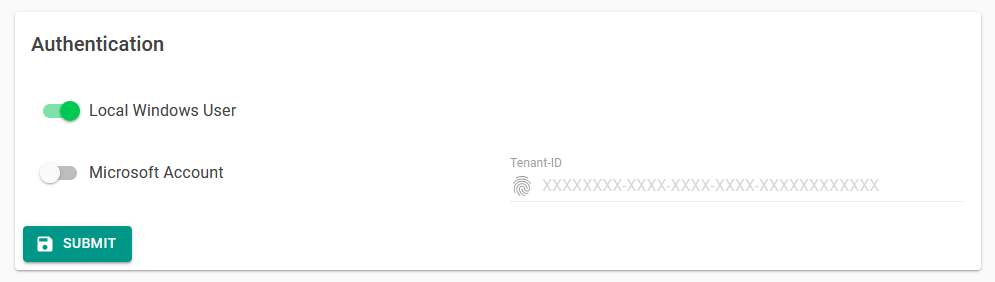
The Id property is the Microsoft Entra Tenant-ID.
{
  "Authentication": {
      "Windows": {
          "Enabled": true
      },
      "MicrosoftEntra": {
          "Enabled": true,
          "Id": "XXXXXXXX-XXXX-XXXX-XXXX-XXXXXXXXXXXX"
      }
  }
}
Login screen
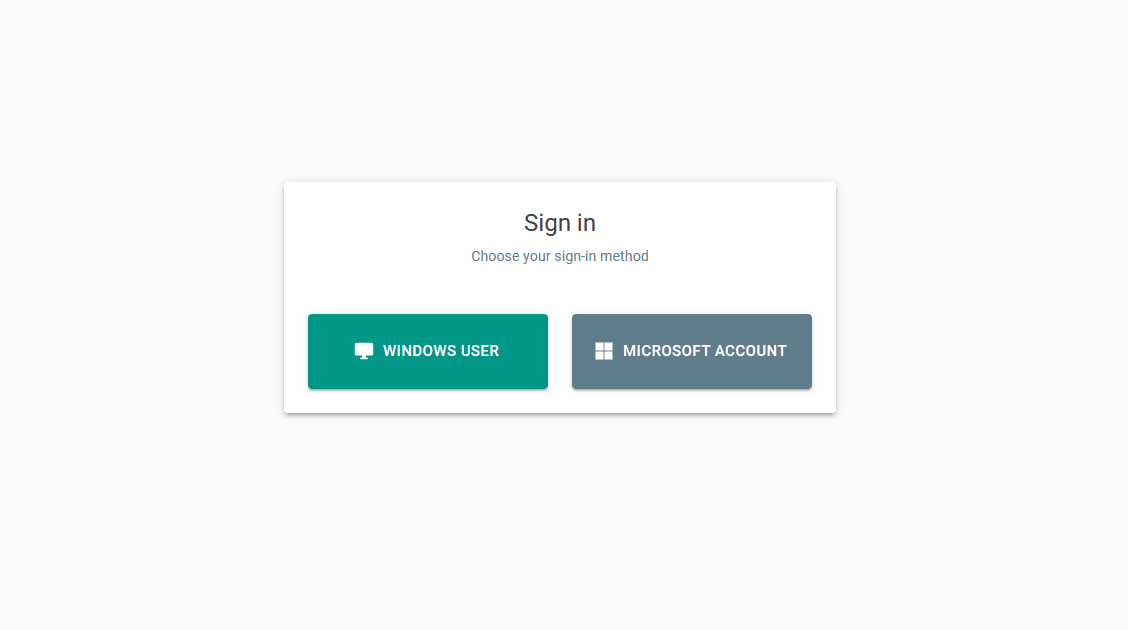
When both methods are enabled, the login screen lets the user pick one. When only a single method is enabled, the browser is redirected to it automatically.
Roles
Access is granted through three primary roles:
| Role | Access |
|---|---|
| Owner | Full administrative access to every page and setting. |
| Contributor | View and change all configuration: Targets, Routes, Deployment, Dashboards, Services, Settings and the Device Twin. |
| Viewer | Read-only access to all pages, including custom Grafana Dashboards. Cannot change any setting. |
The following table shows the access of the primary roles per page:
| Page | Viewer | Contributor | Owner |
|---|---|---|---|
| Targets | view | view & edit | view & edit |
| Routes | view | view & edit | view & edit |
| Deployment | view | view & edit | view & edit |
| Monitor & Services Dashboards | view | view & edit | view & edit |
| Router Dashboard | view | view & edit | view & edit |
| Custom Dashboards | view | view & edit | view & edit |
| Settings | view | view & edit | view & edit |
| Device Twin | view | view & edit | view & edit |
Granular roles
In addition to the three primary roles, granular roles delegate access to a single area only. Each area has a view (read-only) and a contribute (read and write) variant:
- Streaming — Targets, Routes and Dashboards.
hopit.Edge.View.Streaming,hopit.Edge.Contribute.Streaming- Sub-scopes:
...Streaming.Targets,...Streaming.Routes,...Streaming.Dashboards
- Operations — Deployment.
hopit.Edge.View.Operations,hopit.Edge.Contribute.Operations
- Services — Settings and the service Dashboards.
hopit.Edge.View.Services,hopit.Edge.Contribute.Services
The primary roles map to the role values hopit.Edge.Own (Owner), hopit.Edge.Contribute (Contributor) and hopit.Edge.View (Viewer). These values are the ones you assign in Microsoft Entra ID (see below).
The regular Grafana UI uses an organization role derived from the hopit Edge role. Owner and every hopit.Edge.Contribute... role map to Grafana Admin and may create or edit dashboards. Every hopit.Edge.View... role maps to Grafana Viewer and may view dashboards read-only. Explicitly published public-dashboard share URLs remain anonymously accessible.
Local Windows users
When signing in with a Windows account, the role is derived from the Windows group membership of the user:
| Windows group | hopit Edge role |
|---|---|
Administrators | Owner |
Users | Viewer |
Since version 1.7.0, standard Windows users (members of Users but not Administrators) are granted the read-only Viewer role. In earlier versions every authenticated Windows user had full access. To let a standard user change the configuration, add them to the Administrators group or use Microsoft Entra ID with a Contributor role.
Microsoft Entra ID
Signing in with Microsoft Entra ID lets your organization manage hopit Edge access centrally. Setup requires an administrator of the Edge device and, depending on your organization's policies, a Microsoft Entra administrator.
hopit Edge uses the hopit-provided enterprise application. Do not create a custom app registration and do not add localhost, IP addresses, hostnames, or redirect URIs in Azure.
Before you begin
Make sure that:
- a license key assigned to this device has been entered in hopit Edge;
- you can sign in to hopit Edge as an Owner, preferably through Local Windows User;
- you know the Microsoft Entra tenant that contains the users who need access;
- an Entra administrator is available if application consent or role assignment is restricted;
- the Edge device and users' browsers can reach
portal.hopit.atand Microsoft sign-in services over HTTPS.
Keep Local Windows User enabled until Microsoft sign-in and an Entra Owner assignment have been tested successfully.
Microsoft sign-in requires a license key assigned to the device. An expired license key is accepted, allowing an administrator to sign in and renew it. Revoked or not-yet-valid license keys cannot be used for sign-in.
1. Get the Tenant ID
An Azure administrator can find the Tenant ID as follows:
- Sign in to the Azure portal and switch to the directory that contains the intended users.
- Open Microsoft Entra ID.
- Open Overview or Properties and copy the Tenant ID. It is a GUID such as
12345678-1234-1234-1234-123456789abc.
See Microsoft's guide to finding the Microsoft Entra Tenant ID.
2. Configure hopit Edge
On each Edge device:
- Sign in to the Edge web interface as an Owner.
- Open Settings → Authentication.
- Enable Microsoft Account.
- Paste the Microsoft Entra Tenant ID into the Tenant-ID field.
- Leave Local Windows User enabled.
- Select Submit.
- Restart the hopit Edge Windows service.
No Azure configuration is required for the Edge hostname, IP address, or HTTPS port. Users can continue opening the Edge through its normal HTTPS address.
3. Approve the enterprise application
After restarting Edge, start a Microsoft Account sign-in once in the hopit Portal (portal.hopit.at). Depending on the tenant's consent policy, Microsoft may ask for administrator approval.
If approval is required, an authorized Entra administrator should:
- Complete the approval prompt from the hopit Portal sign-in, or open Enterprise applications in the Azure portal.
- Make sure the correct directory is selected.
- Find and open hopit.
- Open Security → Permissions.
- Review the requested permissions and select Grant admin consent if your organization approves them.
If hopit is not yet listed under Enterprise applications, initiate the Microsoft sign-in to the hopit Portal with an authorized administrator account, then refresh the application list.
For details about administrator permissions and consent, see Microsoft's admin-consent documentation.
4. Assign users and roles
An Entra administrator assigns hopit Edge roles:
- Open Enterprise applications in the Azure portal.
- Select the correct directory and open hopit.
- Select Users and groups.
- Select Add user/group.
- Select the user or group that should receive access.
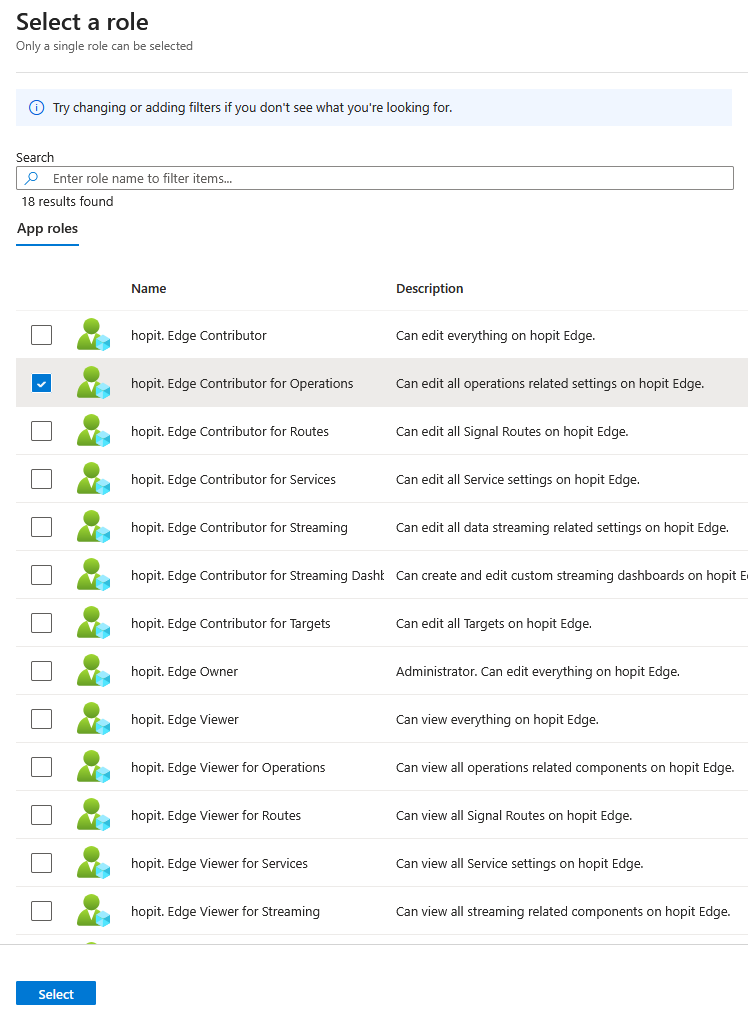
- Under Select a role, choose the required hopit Edge role, for example:
hopit.Edge.Ownfor full Owner access;hopit.Edge.Contributefor full configuration access;hopit.Edge.Viewfor read-only access;- one of the granular roles listed in Roles for access to a specific area.
- Select Assign.
Repeat the assignment when a user or group needs more than one granular role. Group-based assignment requires Microsoft Entra ID P1 or P2, and nested group membership is not applied to enterprise-application assignments. See Microsoft's guide to assigning users and groups to an enterprise application.
An Entra user without a hopit Edge role can complete Microsoft sign-in but cannot access an application page. At present, an Entra role assignment applies to all Edge devices connected to the same tenant; device-specific role assignment is not yet configurable.
5. Test the setup
- Keep the existing Owner session open.
- Open a private/incognito browser window and navigate to the Edge's usual HTTPS address.
- Select Microsoft Account and sign in as an assigned test user.
- Confirm that the user receives the expected access.
- Sign out and sign in again after changing a role assignment; existing sessions do not receive the new role automatically.
Only after an Entra user with the Owner role has signed in successfully should you consider disabling Local Windows User. Restart the hopit Edge service after changing the authentication settings.
Troubleshooting
| Symptom | Check |
|---|---|
| Microsoft sign-in is not offered | Confirm that Microsoft Account is enabled, the Tenant ID is present, and the hopit Edge service was restarted. |
| Microsoft reports that administrator approval is required | Ask an authorized Entra administrator to review and approve hopit for the correct tenant. |
| hopit is missing from Enterprise applications | Sign in to the hopit Portal once with an authorized administrator account, then refresh the Azure portal. |
| Sign-in succeeds but Access denied is shown | Assign a hopit Edge app role to the user or a supported non-nested group, then sign out and sign in again. |
| The wrong organization's accounts are shown or accepted | Verify the Tenant ID on Edge and the currently selected Azure directory. |
| Sign-in cannot be completed | Verify that the assigned license is not revoked or scheduled for a future start, outbound HTTPS access is available, the system time is correct, and the browser continues to use the same Edge address during sign-in. An expired license alone does not prevent sign-in. |